
To add a Microsoft Excel Workbook report to remiCrystal:
- Open an existing remiCrystal task or create a new one
- Go to the Reports & Actions tab
- Click on the Excel Workbook button and select the Excel file you would like to use
- In the Excel Workbook configuration window, you can configure the following
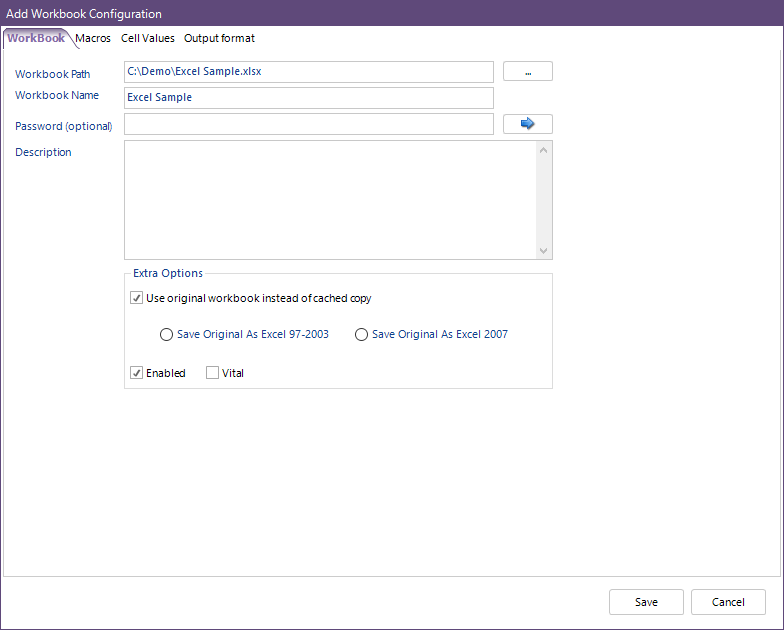
- Workbook Path: the path to the selected workbook
- Workbook Name: the name of the workbook in remiCrystal
- Password: the password for the Excel Workbook if one is required
- Description: the optional description of the workbook
- Use original workbook instead of a cached copy: if checked remiCrystal will not make a working copy of the workbook and will instead use the original file
- Save Original As Excel 97-2003: once remiCrystal completes processing the workbook, it will save the file as an Excel 97-2003 (.xls) file.
- Save Original as Excel 2007: once remiCrystal completes processing the workbook, it will save the file as Excel 2007 (.xlsx) file.
- Enabled: check to specify if this report should run as part of the remiCrystal task
- Vital: when checked, the entire remiCrystal task will be stopped if this report fails to run for any reason
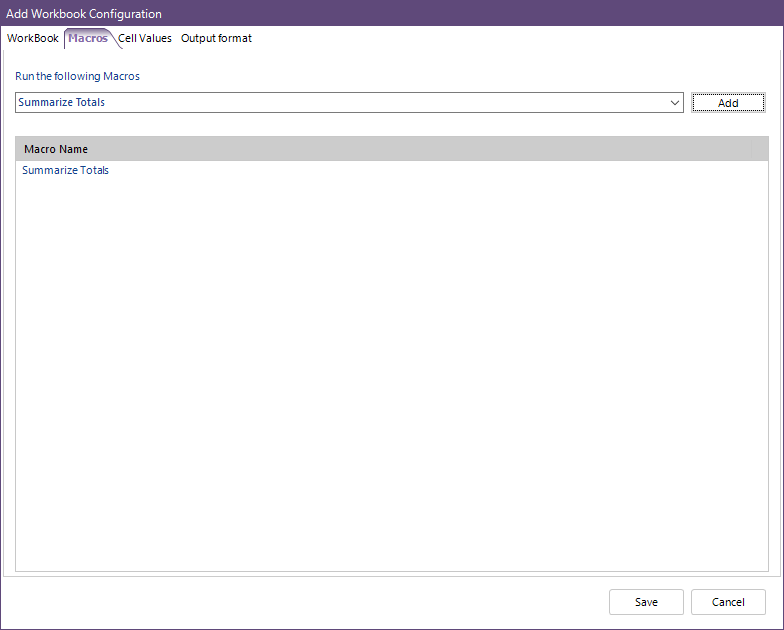
- Under the Macros tab, you can select which Macros should be run by remiCrystal once it opens the Workbook
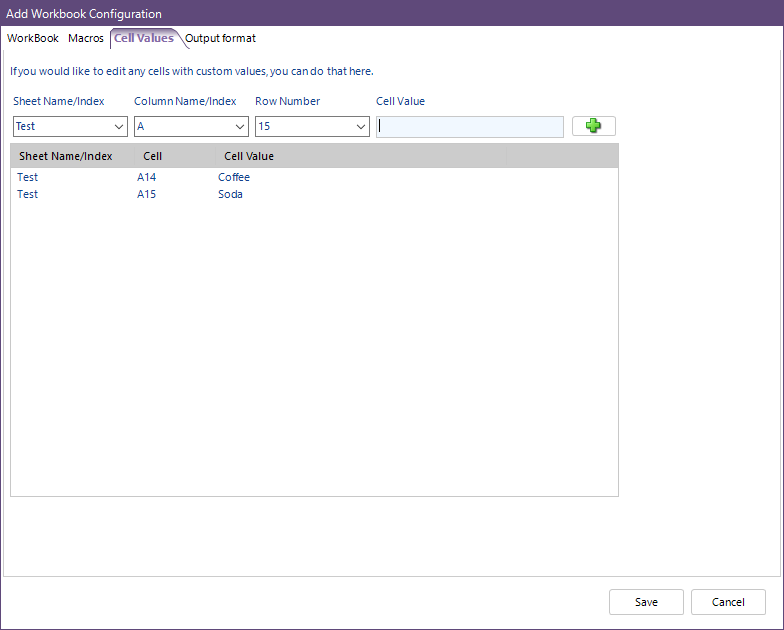
- You can also specify values for individual cells to be set by remiCrystal under the Cell Values tab
- Finally, you can specify if you would like to save a single worksheet or entire worksheet to a different format under the Output format tab
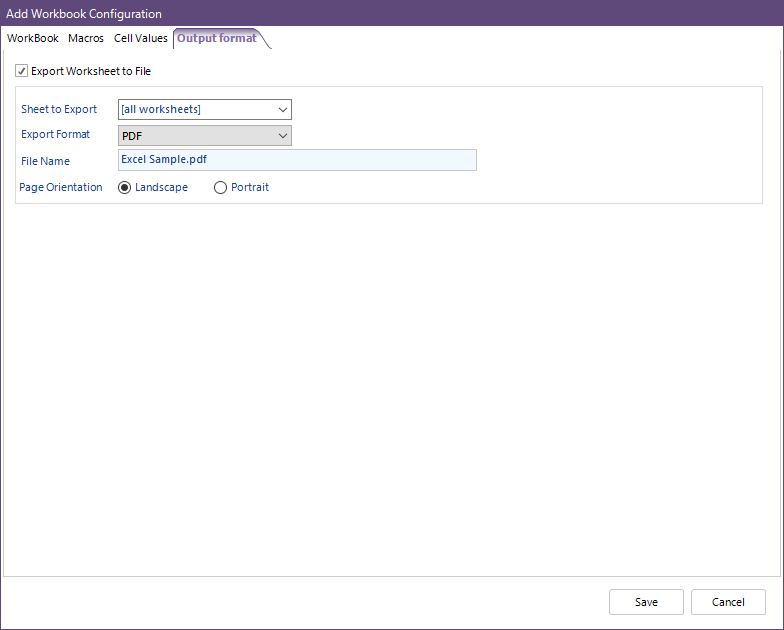
- Hit the Save button to complete setting up the Excel Workbook
Comments
0 comments
Article is closed for comments.