
To add a SQL Report to an existing or new remiCrystal task:
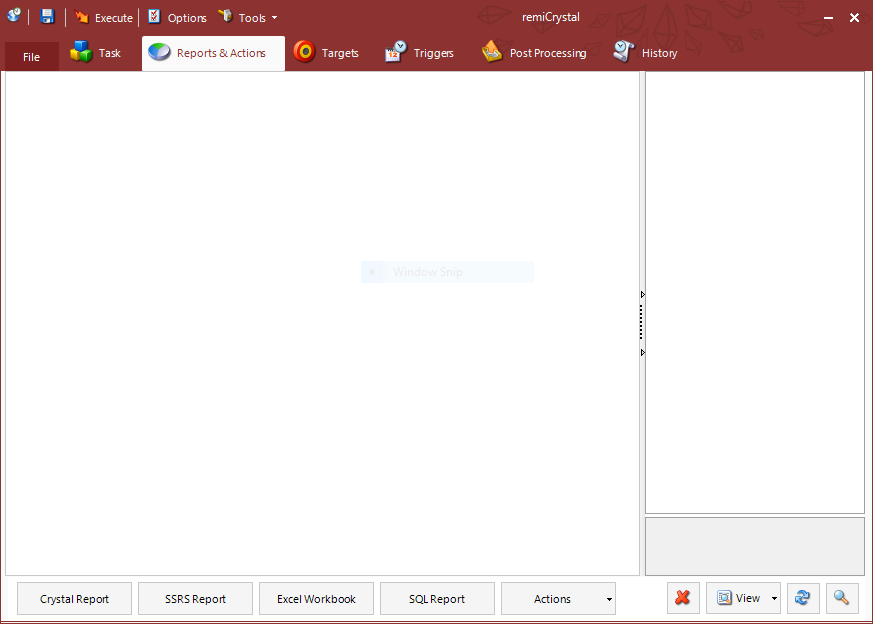
- Open remiCrystal and go to the Reports & Actions tab
- Click on the SQL Report button
- When the new SQL Report window opens, in the Report tab you can specify the following options
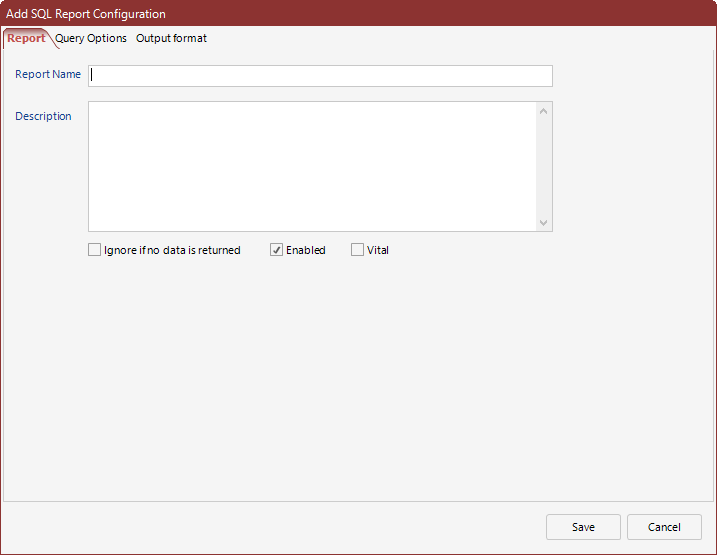
- Report Name: the name of the report
- Description: the description for the report (optional)
- Ignore if no data is returned: whether or not the report will be ignored when the query doesn't return any records
- Enabled: whether the report will be run as part of the task or not
- Vital: whether the entire task should be stopped if this report fails
- Under the Query Options tab, the following options are available:
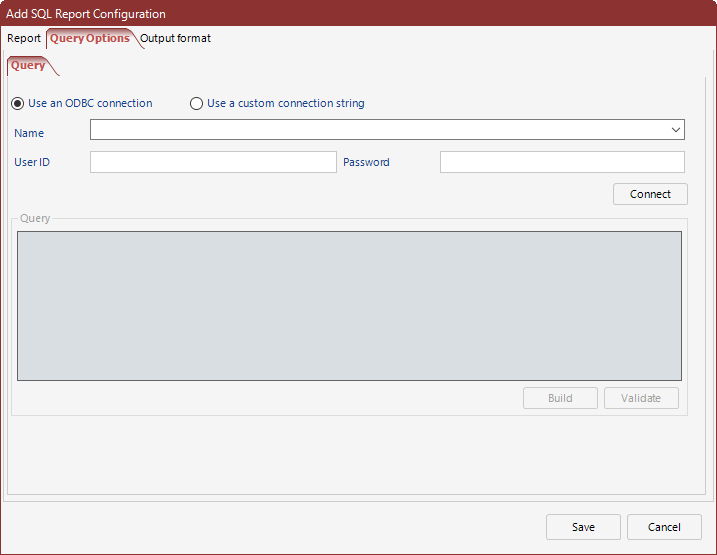
- You can select to use an ODBC DSN to connect to your database or a custom connection string (the ODBC DSN must be created under the System DSNs of the 32-bit ODBC Admnistrator control panel).
- Select the ODBC DSN from the dropdown or enter your connection string
- Provide the ODBC DSN username and password if required
- Hit the Connect button
- Once connected, you can use the query builder to construct your SQL query or paste in a custom one
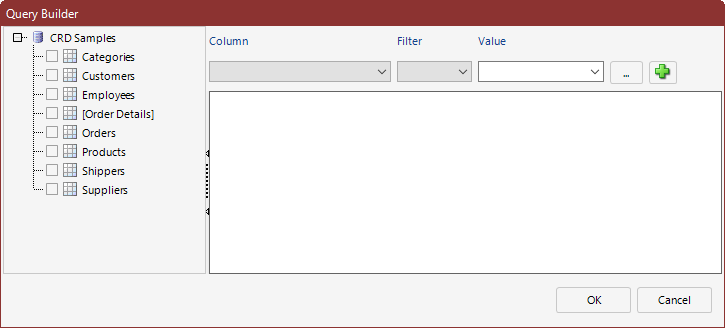
- Hit OK when completed
- From the Output Format tab, you can specify the format that you would to export the query results to as well as the name of the output file.
Comments
0 comments
Article is closed for comments.