
What are Triggers?
In remiCrystal, Triggers allow you to set up a schedule of when a task should run automatically. A remiCrystal task can have from none to multiple triggers.
To offer unparalleled reliability and ease of set up, remiCrystal uses the Windows Task Scheduler service for its scheduling engine. This means that:
- as long as Windows is running, the scheduler will also run
- there is no need to install and manager a separate scheduler application
- remiCrystal tasks will continue to run whether you are logged into your server or not
- you will need to provide a Windows service account to use with the triggers and this account must have the following rights (you can read more on how to assign Windows rights at this link):
- Local Administrator rights
- Act As Part of the Operating System rights
- Log In As A Service rights
- Log In As Batch Job rights
- Read and Write access rights to the folder where you store your remiCrystal tasks (rctx files)
- Access to all the databases and servers that are used by your reports
- A Windows password that never expires (recommended)
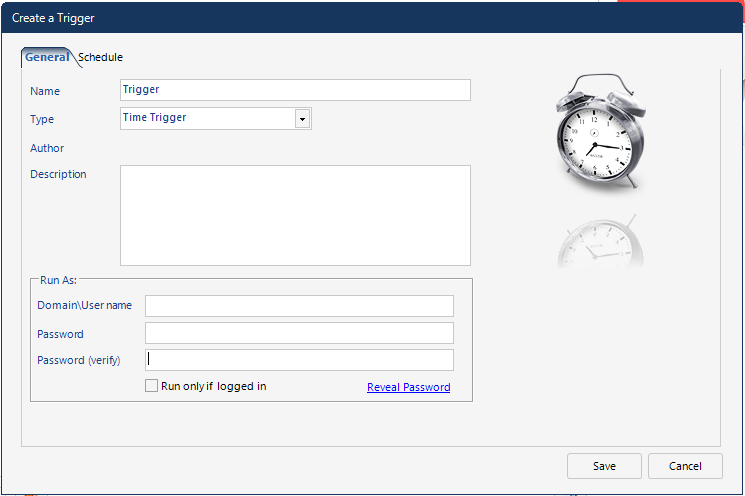
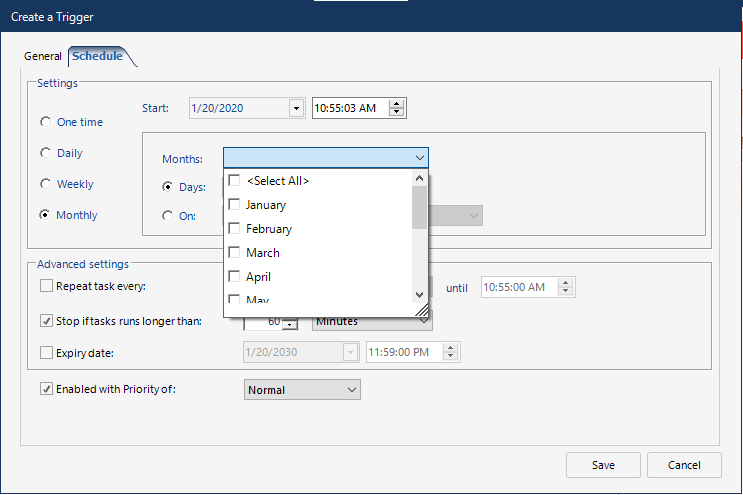
To add a trigger to a remiCrystal task
- Go to the Triggers tab and click on the “Add” button
- If prompted to save the task, go ahead and save it to your desired location (make sure this location is accessible by the service account mentioned above)
- Provide a name and an optional description for the trigger
- Specify the Windows service account to use to register the trigger. The task will run as this account when automatically triggered.
- On the next tab, select the frequency of how often you would like the trigger to run
- Specify the date and time of when you want the trigger to start.
- Other options include how often the trigger should repeat, the CPU priority and an expiry date when the trigger should no longer run.
- Click the Save button once you are happy with all the options.
Comments
0 comments
Article is closed for comments.